Write the desk specification first
Name the three monitors and note their inputs, resolution and target refresh rate. Add whether the laptop display will stay on. This is the configuration you need a manufacturer to support, rather than the vague claim that a dock handles three monitors.
For example, a desk used for documents may prioritize three independent office screens. A desk with one high-refresh main display and two reference screens has a different requirement. Neither should be selected from the dock’s single largest resolution headline. Keep the actual three-screen arrangement visible while comparing candidates.
The computer establishes the first ceiling
Check the host’s external-display specification before reading dock reviews. Some support totals include the built-in panel; some change with resolution, chip variant or connection path. Lenovo’s T14 Gen 5 Intel documentation, for example, explicitly counts the native panel within its four-display total. That detail changes how you read a product advertisement.
A dock does not automatically erase the computer’s native graphics limit. A second direct video connection may be a useful option, but it still needs to fit the host’s supported arrangement. Treat “two on the dock and one on HDMI” as a configuration to verify, not a universal workaround.
Need to compare actual models while you read?
See relevant dock optionsFind out how the dock generates the pictures
A native-video dock uses display capabilities provided by the host. A DisplayLink product adds USB graphics with software requirements. Some three-screen docks mix the two methods, so an incomplete host connection can affect one output while the others continue working. The correct question is how each numbered display group works.
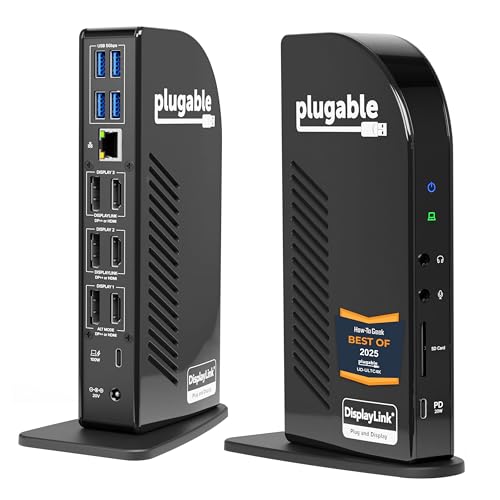
Plugable’s UD-ULTC4K documentation provides an example of that mixed approach. It identifies a native Alt Mode path alongside DisplayLink outputs and lists different supported results for host video capabilities. Its paired HDMI and DisplayPort connectors are alternatives within display groups, not six independent screens. This is why the connection diagram can be more useful than a socket count.
Check software permission before buying for an employer-managed computer. A setup requiring DisplayLink can depend on approved installation and operating-system support. Also review the maker’s stated limits for protected video and graphics-heavy work. A dock suited to spreadsheets should not be presumed suitable for every video or gaming requirement.
Resolve the resolution question before checkout
Look for an explicit three-display row in the manufacturer’s compatibility table. Does it use the exact outputs you need? Does it specify the host’s DisplayPort or Thunderbolt capability? Is the figure based on extended displays rather than mirrored copies? If the row leaves out your operating system or host connection, the result remains unconfirmed.
Adapters deserve the same attention. Replacing a DisplayPort cable with an HDMI adapter introduces another component with its own supported direction and resolution. Avoid buying a chain of inexpensive converters to make an unsuitable port layout resemble the right one. A dock with the needed documented outputs can be easier to maintain.
Commission the setup in stages
Connect one monitor and confirm its intended display mode, then introduce the second and third. On Windows, Microsoft documents Identify and Detect controls in Display settings and separates Duplicate from Extend. Arrange the screen positions after all intended displays are recognized.
If adding the third screen changes the first two, return to the compatibility table before assuming a defective monitor. Temporarily simplifying resolution or removing an adapter can help isolate the issue, but a successful reduced setting does not prove the original target configuration was supported. Record the final working cables, ports and settings.
Before the return window closes, try the normal routine: reconnect the laptop, wake it from sleep, join a call and use the other USB devices. These are acceptance checks for your setup, not benchmark claims. A stable arrangement that meets your actual needs is more valuable than an impressive unused maximum.
Related questions
Can a three-monitor dock run six screens if it has six video sockets?
Not necessarily. Some docks pair HDMI and DisplayPort as alternative connections for the same display group. Check the numbered output diagram and simultaneous-display limit.
Can I keep the laptop screen on with three external monitors?
Only when the host and complete connection arrangement support that many active displays. Verify whether the manufacturer’s stated total includes the internal screen.
Sources & specifications
- Lenovo ThinkPad T14 Gen 5 Intel: PSREF specifications
- Plugable UD-ULTC4K: display paths and host compatibility
- Microsoft: Using multiple monitors in Windows
Research checked September 11, 2026. Product revisions, firmware and operating systems can change compatibility.